How to move Google Classroom grades into Infinite Campus (3 ways)
Updated November 9, 2026
The short answer. If your district pays for Google Workspace for Education Plus (or the Teaching and Learning Upgrade) and Infinite Campus's Campus Learning, you can use Google Classroom's built-in grade export. If it doesn't, you either type each score into the Grade Book or use a Chrome extension that fills the column for you, which you then review and save.
The three ways at a glance
| Way | What you need | Watch out for |
|---|---|---|
| 1. Google Classroom grade export | A Google license for each teacher, Campus Learning in Infinite Campus, and setup by your IT team | Due dates, categories, "Uncategorized Assignments", only the primary teacher can link a class |
| 2. Type the scores by hand | Nothing but time | Typos and skipped rows, especially with 150+ students |
| 3. A Chrome extension | Chrome on your computer or Chromebook, and your IT team's OK if extensions are managed | What data the extension sends to a server, and which sites it can access |
1. Google Classroom's grade export (the official sync)
Google Classroom can send grades straight to the Infinite Campus Grade Book, but only when several pieces are in place:
- A Google license for each teacher. Since July 9, 2024, grade export requires Google Workspace for Education Plus or the Teaching and Learning Upgrade (Google Classroom Help).
- Campus Learning in Infinite Campus. Your district needs the Campus Learning License, and an administrator creates OneRoster 1.2 credentials for Google Classroom (Google Classroom Help).
- Grade pass back turned on. In Infinite Campus, an administrator allows grade pass back for Google Classroom and can set a default category (Infinite Campus).
- Infinite Campus hosted by Infinite Campus. Google says grade export works with Campus Cloud, not with districts that run Infinite Campus on their own servers (Google Classroom Help).
When it is set up, the teacher links the class to the SIS, matches it to a category and grading task, and exports. The common snags, from Google's own help page (Export grades to your SIS):
- Only the primary teacher of a class can link it.
- Every assignment needs a due date inside the Infinite Campus grading period.
- The category has to already exist in Infinite Campus. Without defaults, grades land in "Uncategorized Assignments".
- Assignment titles are cut to 50 characters.
- Student emails in Classroom and Infinite Campus have to match.
No "Link to SIS" button in Classroom?
That usually means one of the licenses above isn't active for you or your district. It isn't something you can switch on yourself: ask your district's technology team whether you have Education Plus or the Teaching and Learning Upgrade, and whether Campus Learning is turned on. If the answer is no, ways 2 and 3 are what's left.
2. Type the scores by hand
This is what most teachers without the sync do. A few things make it faster and safer:
- Download the grades from Classroom first (steps below) and sort the sheet by last name, so it lines up with the Grade Book.
- Watch for students who go by a nickname or a middle name in one system and not the other. That is where a score ends up on the wrong row.
- Leave scores you already entered alone, and check the column once more before you click Save.
3. Use a Chrome extension
A Chrome extension can read the Classroom grades file and type the scores into the Infinite Campus column for you. There are a few on the Chrome Web Store. Before you pick one, check two things: whether it sends your students' names and scores to its own server, and which websites it asks permission to read.
GradeFerry is the one we make. It works like this:
- Download the grades CSV from Google Classroom, or copy names and scores from any spreadsheet.
- Open your Infinite Campus Grade Book and click any cell in the assignment column.
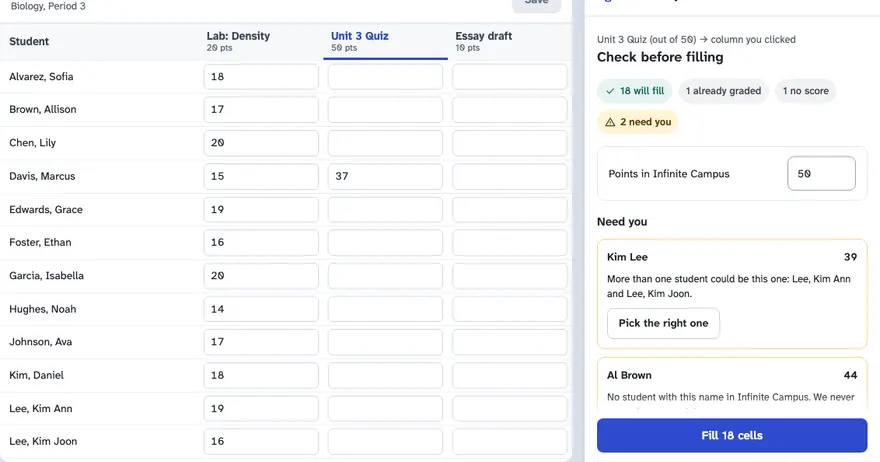
- Check the matches in the side panel. When a name could be two students, GradeFerry asks you instead of guessing.
- Fill the column. Filled cells are outlined, every cell is checked after it is typed, and you click Save in Infinite Campus yourself.
Student names and scores stay in your Chrome: no account and no GradeFerry server. It doesn't need Education Plus or Campus Learning. If your Chromebook is managed, your IT team can allow it for your Infinite Campus address only. Here is the one-page note for them.
How to download grades from Google Classroom as a CSV
- Open the class in Google Classroom and go to the Grades tab.
- Click the gear icon and choose Download all grades as CSV.
- The file has one row per student and one column per assignment, with the points each one is out of.
Common questions
Does Google Classroom's grade export need Education Plus?
Yes. Since July 9, 2024, each teacher needs Google Workspace for Education Plus or the Teaching and Learning Upgrade to use grade export, and the district also needs Infinite Campus's Campus Learning License.
Why did my grades land in "Uncategorized Assignments"?
The class wasn't matched to a category when it was linked, and no default category was set in Infinite Campus. Matching the class to an existing category and grading task, or asking your administrator to set a default, fixes it for the next export.
Is my Classroom data safe with a Chrome extension?
It depends on the extension. Read its privacy policy and the permissions it asks for. GradeFerry keeps everything in your browser and only reads the Infinite Campus address you allow.
GradeFerry is an independent tool, not affiliated with Google or Infinite Campus. Google Classroom and Infinite Campus are trademarks of their owners. Questions or corrections: gradeferrycontact@gmail.com.